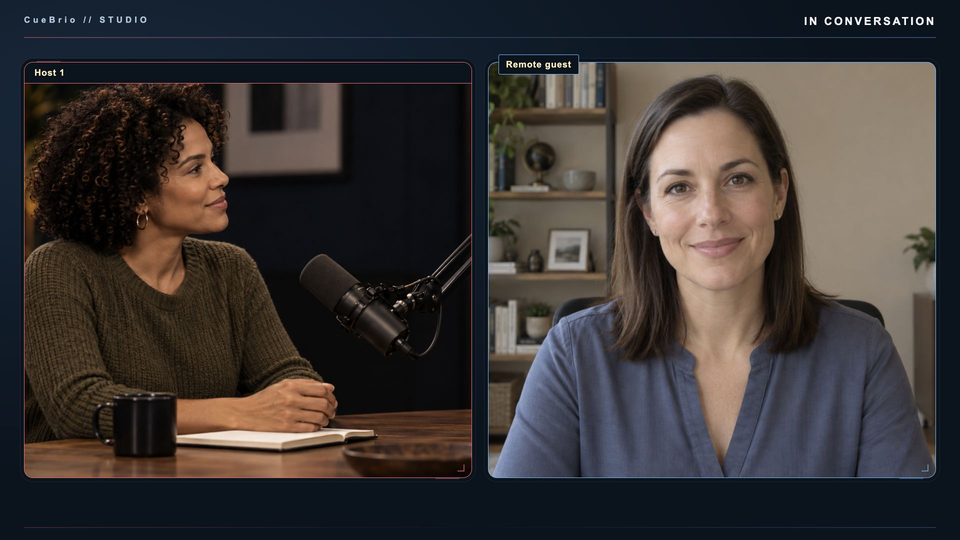
For podcast hosts & studios
Reuse the format. Welcome the next guest. Keep your attention on the conversation while your show controls stay close.
Explore the podcast workflow →
LIVE STREAMS. PRODUCT REVIEWS. PODCASTS.
More control. More room to be yourself.
CueBrio // STUDIO brings cameras, guests, clips and cues together around OBS. Run your live stream or multicamera recording from your Mac, a tablet or physical keys—and keep your attention on the show.
Early Access: Apple silicon Mac, M1 or newer required.
For experienced live creators, reviewers and podcast studios. Built around OBS and Companion.
BUILT FOR YOUR SHOW
Reuse the format. Welcome the next guest. Keep your attention on the conversation while your show controls stay close.
Explore the podcast workflow →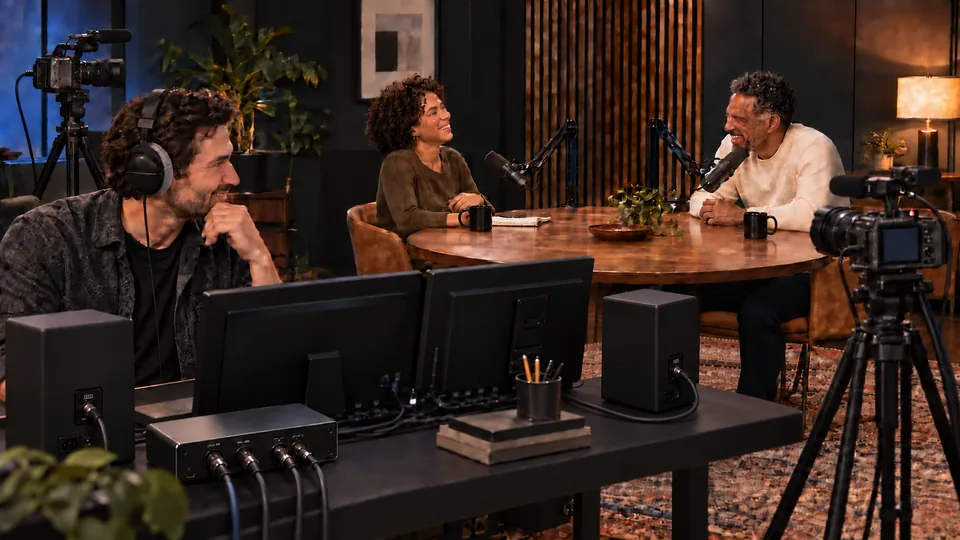
The close-up. The supporting clip. The next talking point. Keep them within reach for streams, reviews and camera-led shows.
Explore the streamer workflow →Illustrative production scenes; product captures below show the CueBrio workflow.
YOU KNOW YOUR SHOW. ENJOY RUNNING IT.
Bring your rundown, branding and everyday controls together around OBS—so running the next episode feels familiar.
Give a co-host or trusted producer the prepared controls for their part of the show. Spend less time explaining which nested OBS source does what, and more time making the episode together.
Reuse your show structure, people and supporting media. Bring prepared camera layouts and name graphics into the same workflow, then update what changes for this episode. A familiar format gives your brand a consistent starting point.
Keep the next segment, clip and guest organized in the rundown. Cue prepared content while the current picture stays live, then Take when the moment arrives. There’s less to keep in your head while you’re listening, hosting or showing the detail that matters.
OBS remains the capture, mixing, recording and streaming engine on your production computer. CueBrio adds coordinated show controls around it. Remote guests, remote operation and online services still depend on their connections.
PREPARE → CUE → TAKE
Save your segments, people and media. Use Save As for the next episode.
Choose a topic or stage media while the current picture stays live. Review websites before approval.
Take the prepared content when the conversation gets there. Direct camera and layout controls still switch immediately.
SEE WHAT IT TAKES OFF YOUR HANDS
Prepare the episode
Keep segments and supporting media together. Cue without interrupting the current picture, Take when ready, and return to the show. Reuse the format next week.
Try Cue → Take →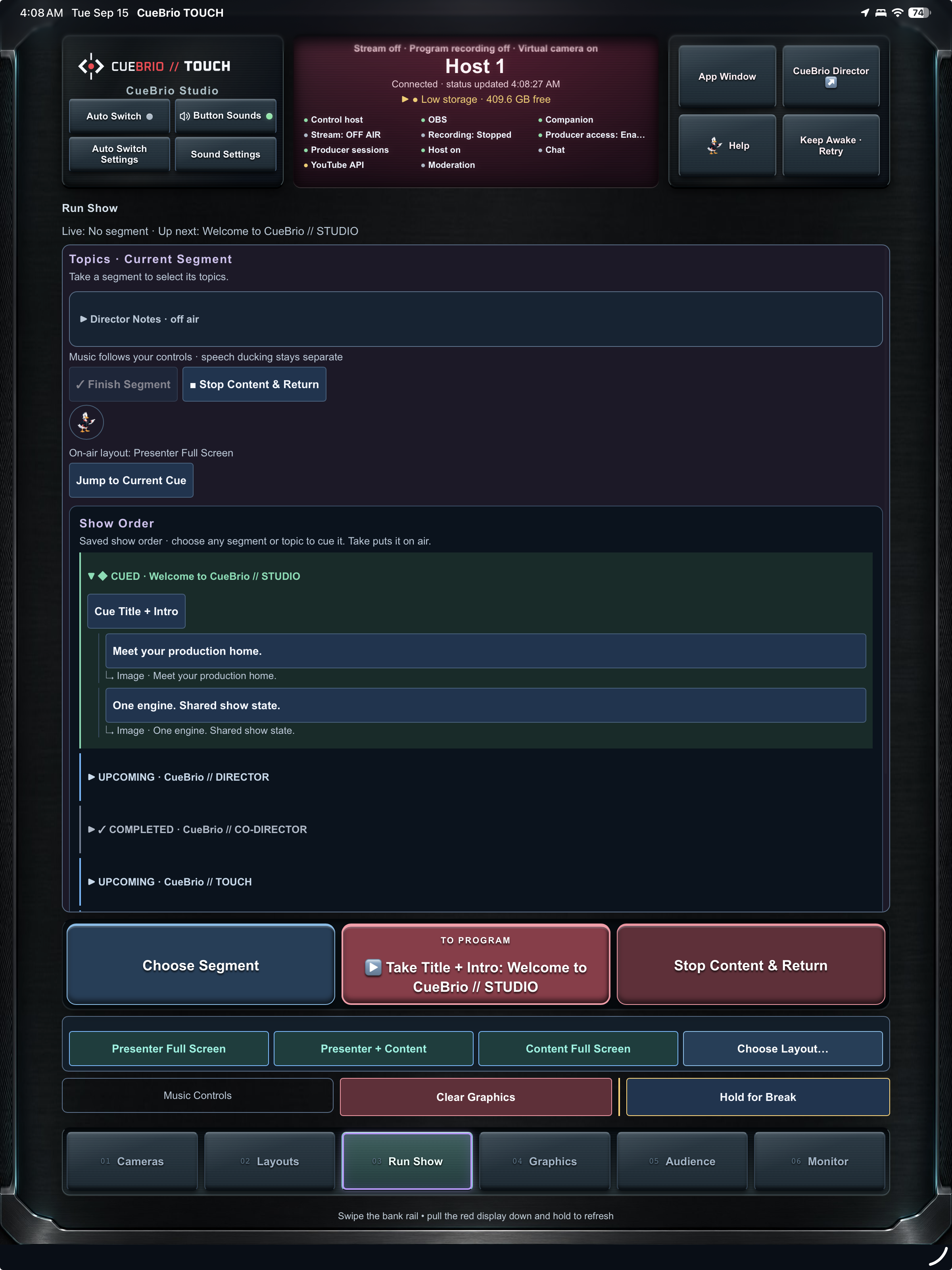
Share the production
CO-DIRECTOR · Remote Producer gives a trusted operator access to supported controls while you host. Local controls remain available; remote audio/video monitoring depends on your studio setup.
Try the remote producer →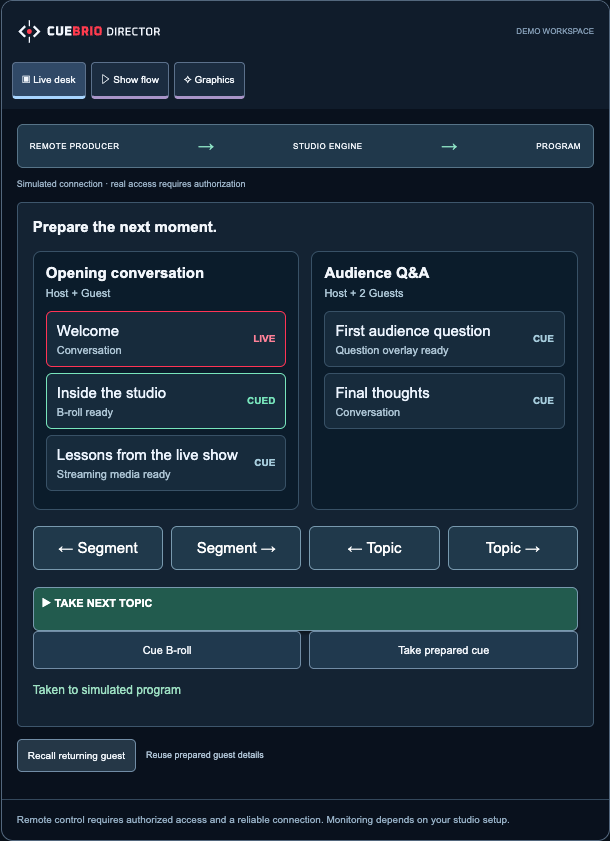
Follow the conversation
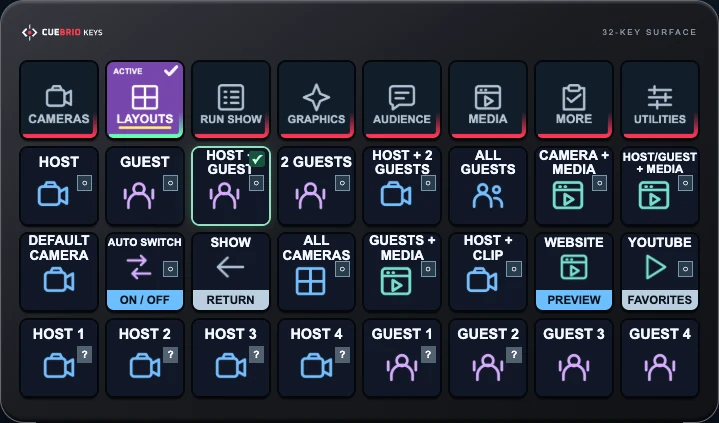
Auto Switch follows the current speaker, keeping the conversation in view. Adjust speaker response time and minimum shot hold to give the conversation room to breathe. Choose a default camera for pauses and overlapping voices.
Energetic panel? Enable God Mode to give the host priority. Your director or producer can override Auto Switch at any time and cut to the camera they choose.
Try Auto Switch →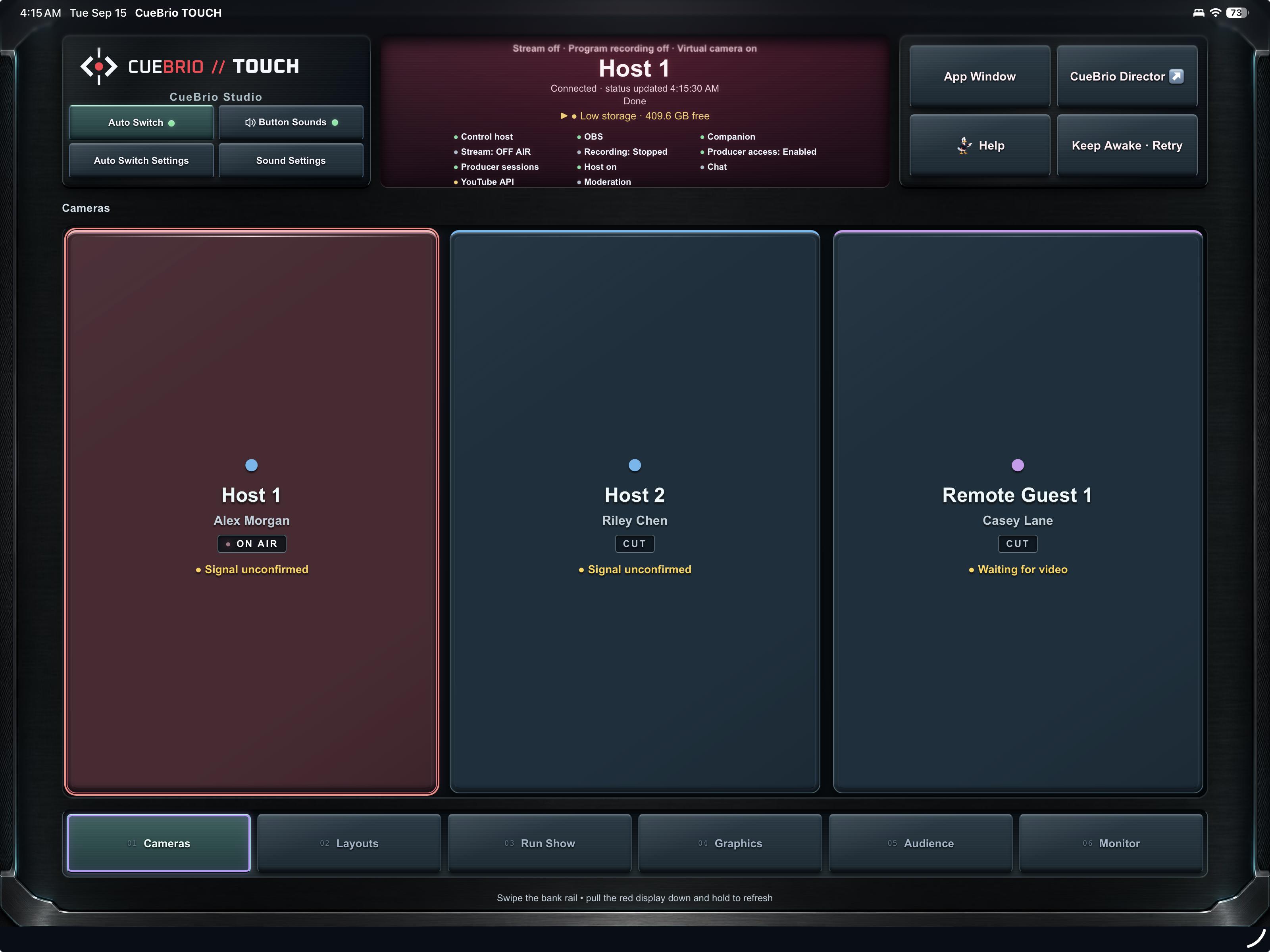
Audience tools need connected accounts. ISO/replay needs configured outputs and storage; adding a guest does not create a recorder.
Put CueBrio through its paces →Bring the production task you’d most like to make easier.
FROM EQUIPMENT TO FIRST CUE
A guided setup walks through cameras and microphones, then picture and sound checks. Save your progress and return where you left off.
Enable TOUCH access during setup, set a password and open the connection link or QR code. Give a trusted producer supported controls without sharing your whole desktop.
Keep the show’s people, branding and rundown. Update the content for the next episode, then check your inputs before going live.
Explore the setup walkthrough →
The Mac launcher brings startup, service status and recovery together. Equipment, monitoring and connected services still need a real-world check.
SOUND CONTROLS. RIGHT WHERE YOU NEED THEM.
Adjust the configured Host Mix and individual guest source levels from Director, Touch or prepared Keys. Mute a source when you need to, without leaving the show controls.
Read the current level and use Unity to return it to 0 dB. On supported Keys volume buttons, hold either direction for the reset; a quick tap still adjusts the level.
Find ducking and sound controls together, with music and clip transport still in Media. These adjust shared source/program levels; independent headphone mixes are not included.
ONE SHOW. SEVERAL WAYS TO OPERATE.
A shared show-control system built around OBS.
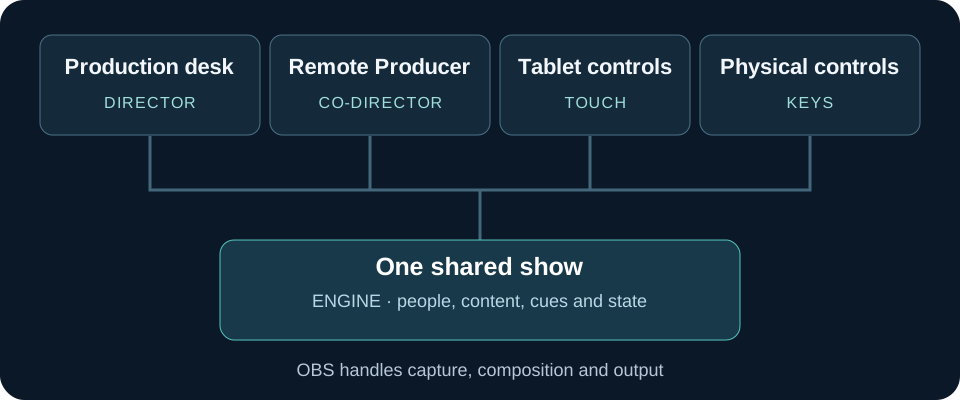
Prepare people, branding, segments and media; operate the show from your browser.
Bring a trusted producer into the same workflow through authorized remote access.
Keep camera choices, cues and contextual editors beside you while you host.
Reach prepared Companion/Stream Deck actions with familiar labels and feedback.
Connect configuration, people, assets, actions and state. OBS still captures, mixes, records and streams.
CueBrio connects an authored show workflow around OBS and Companion. It does not replace their video engine or broad integration ecosystem. Other production tools can build similar workflows with their own configuration.
| The workflow you want | CueBrio // STUDIO Prepared to work together | OBS Studio | vMix |
|---|---|---|---|
| One coordinated desktop, tablet, and physical-key workflow | ✓ IncludedNamed people, cues, graphics, and shared show state across DIRECTOR, TOUCH and configured KEYS. | + Build with integrations | + Custom control setup |
| Speaker-following camera workflow | ✓ IncludedChoose a default host, adjust switching pace, and take control at any time. | + Add automation | + Custom automation |
| Choose segments and topics, then take them live | ✓ IncludedA segment-and-topic cue sheet, with explicit Take and a return to the current cue. | + Add a rundown workflow | + Build around inputs & playlists |
| Returning-person profiles tied to camera/name controls | ✓ IncludedRecall a person, assign the feed, and use contextual name cards. | + Custom profile workflow | + Custom profile workflow |
| Hold-to-edit controls across prepared show surfaces | ✓ IncludedTap to operate; hold for supported name/source/settings editors, with explicit Save and Cancel. | + Build with integrations | + Custom control setup |
| Matching Touch and Stream Deck show categories | ✓ IncludedFamiliar banks, contextual choices, and prepared XL workflows. | + Configure separately | + Configure shortcuts/controllers |
| Tablet / browser control | ✓ IncludedCueBrio // TOUCH and Director / CO-DIRECTOR · Remote Producer: coordinated control at the studio or through configured, authorized remote access. | + Add an integration | ✓ Included · Web Controller |
| Preview before putting content on air | ✓ IncludedPrepared content approval and return-to-show actions. | ✓ Included · Studio Mode | ✓ Included · preview workflow |
| Core capture, mixing, recording, and streaming | ✓ Via OBS foundationCueBrio // STUDIO adds coordinated show operation. | ✓ Included | ✓ Included |
| The recurring-show headache | What CueBrio provides | What to know |
|---|---|---|
| Rebuilding the show every episode | Saved shows with segments, topics and associated assets; Save As creates a separate show copy. | Review episode-specific content and device assignments before use. |
| Confusing preparation with going live | Separate Cue and Take actions, plus website review before approval. | Camera and layout Take controls change Program immediately; preparation is a distinct action. |
| Needing another pair of hands | Authorized CO-DIRECTOR · Remote Producer access alongside local DIRECTOR and TOUCH control. | Remote connectivity, permissions and monitoring must be configured. |
| Losing track of what viewers see | On-air graphic indicators, a graphics status summary and explicit Show / Hide controls. | Connection health is separate from confirmed on-air state; unknown status requires attention. |
| Hunting through menus during a show | A scrolling rundown, contextual Q tips and supported hold-to-edit controls. | Gestures depend on the control; expanded help links explain the workflow. |
Comparisons describe prepared workflows, not exclusive capabilities or performance benchmarks. Features depend on equipment, integrations and editions.
OUR STORY
CueBrio grew out of a familiar feeling: spending so much energy getting ready that you have less left for the show.
Founded by Nick Gasmena
Producer, studio owner, and live broadcast operator.
Nick Gasmena built live productions for people at the event and viewers watching remotely. One difficult show brought 44 straight hours of troubleshooting. CueBrio grew from a simple conviction: a prepared production should give you less to carry in your head.
You know what you want the show to feel like. A good conversation. The right camera at the right moment. Clips and graphics that help tell the story. Enough room to be yourself and connect with the people watching.
Then the preparation takes over. A camera needs troubleshooting. A guest’s name is still on last week’s graphic. The clip you meant to cue is somewhere in a folder. Something that worked during rehearsal has stopped working, and you’re checking settings while everyone waits.
By the time you go live, you’ve spent much of your energy getting ready. Now you have to be present, keep things moving, and remember which button does what.
CueBrio grew out of that feeling.
Our founder, Nick Gasmena, spent years in recording studios, on film sets, and behind live productions through Hit Warehouse. At Amped Electric Games, that work took him into remote locations with six to ten wireless cameras, two hosts, and a production rig serving two audiences: the people watching the live broadcast and the crowd at the event.
The team was also among the first to bring live drone coverage to personal electric vehicle (PEV) racing, alongside wireless cameras around the track. Bringing those perspectives into the production while serving both audiences took substantial technical coordination and pre-production. Every feed, cue, and piece of supporting content needed a place in the plan—and a manageable way to operate it when the racing started.
During one particularly difficult stretch, he spent 44 hours straight working through technical glitches, unnecessary layers of hardware, and a corrupted OBS configuration. Fix one thing, discover another. Keep checking. Keep going. There was still a show to deliver.
Over the years, conversations with other broadcast engineers brought out familiar stories: lost sleep, late-night swearing, and carefully assembled productions held together by workarounds only one person understood.
That experience shaped the idea behind CueBrio:
A well-prepared production should give you less to carry in your head.
Your guest names, camera assignments, graphics, and supporting media should be organized before you need them. Your rundown should help you operate the show. Routine setup should be repeatable, with automation helping reduce the manual steps where mistakes creep in. And when you reach for a control, you should understand what it will do.
That’s the thinking behind CueBrio’s approach to preparation and live production. Bring the tools into a coordinated workflow. Make the next cue clear. Give people a chance to check their choices before taking them live.
It’s also about making room for the show you originally imagined. The supporting clip that adds context. The graphic that makes an idea easier to understand. The music and transitions that make a small production feel considered and complete. Those details become easier to include when preparing and operating them feels manageable.
Whether you’re hosting on your own or working with a small crew, your attention is already in demand. CueBrio exists to help you spend more of it on the conversation, the story, and the audience.
CueBrio. Stay in the show.
YOUR EXPERTISE. YOUR PERSONALITY. YOUR SHOW.
The product close-up. The clip that makes your point. Your guest’s name, ready when they join. Get the pieces in place, then reach for them when the moment arrives. Leave more room for the part only you can bring.
You can plan the show. You can’t plan the moment.
Bring your show to Early Access →For experienced creators and podcast studios running production on an Apple silicon Mac, M1 or newer. Places are limited.
LESS MENU HUNTING. MORE SHOW.
Practical answers for running a stream or podcast, with the setup requirements kept in view.
CueBrio // STUDIO brings cameras, guests, clips, graphics and a reusable rundown into one OBS-based show-control workflow. It is built for experienced live creators, product reviewers and podcast studios. OBS handles capture, mixing, recording and streaming on the production Mac; CueBrio helps you run the show.
Prepare a reusable rundown with your segments, people and supporting media. In CueBrio, Cue stages the next topic or item while the current picture stays live; Take puts prepared content on air. Direct camera and layout controls still switch immediately. This separates preparing the next moment from broadcasting it.
Yes. CueBrio lets you keep a prepared show and use Save As for the next episode. Update the guests, segments and media, then check the setup before going live. Reusing a format reduces repeated preparation; it does not remove the need to test cameras, audio and outputs.
CueBrio CO-DIRECTOR gives an authorized remote producer access to supported controls in the shared show. The local host retains control. Remote audio and video monitoring, connectivity and available actions depend on the configured studio; remote control alone does not provide a universal monitoring feed.
Auto Switch follows the current speaker in a configured studio. Adjust speaker response time and minimum shot hold to shape the pace, choose a default camera, and enable host priority when appropriate. Host priority and manual intervention can change the shot sooner. Separate usable audio inputs and camera mapping still need setup and rehearsal; Auto Switch does not automatically build a picture-in-picture layout.
CueBrio TOUCH provides tablet-oriented controls, while KEYS uses prepared Companion and Stream Deck actions. DIRECTOR provides the production desk in a browser. These surfaces share the configured show. KEYS is a software integration, not controller hardware supplied by CueBrio.
CueBrio supports speech ducking in a configured workflow so music can sit under the conversation. Audio routing and levels still need to be prepared and checked. Music ducking is separate from the rundown and camera-switching controls.
No. Adding a guest does not create a recorder. ISO recording and replay depend on configured outputs, storage and the studio workflow. Confirm those requirements before promising separate guest recordings or replay coverage.
A small team can use a repeatable format for expert interviews, customer education or recurring conversations. CueBrio helps organize segments, media and supported production controls around OBS. It does not promise audience growth, sales or leads. Describe your real production needs when applying for Early Access.
CueBrio focuses on preparing and operating the show. It is not a general repair tool for overloaded encoders, insufficient bandwidth or misconfigured audio. OBS performance and synchronization still depend on the computer, sources, settings and connections. Review your setup requirements and resolve those causes before a live show.
Everyday operation uses the prepared CueBrio controls for the configured show: choosing cues, taking content live and using supported camera, layout and graphic actions. An operator can learn those controls without writing a script for each action. Someone still needs to configure OBS, Companion, sources and audio, rehearse the workflow and handle technical problems. CueBrio does not eliminate setup or operator training.
No. OBS remains the capture, mixing, recording and streaming engine on your production computer; CueBrio coordinates the configured show around it. This is not a promise that every feature works offline: streaming destinations, remote guests, remote access and connected services need their respective connections. Test the local workflow and its dependencies before a show.
Yes. An authorized CO-DIRECTOR signs in to the configured CueBrio control interface to operate supported scenes, media, graphics and rundown actions. They do not need a general remote-desktop session for those controls. The host can disconnect sessions or disable remote access; local controls remain available. Remote monitoring and connectivity need their own setup, and commands already sent cannot be recalled.
You can use the configured show controls for local multicamera recording in OBS as well as live streaming. Prepare your cameras, audio and rundown, then check recording settings and storage before the session. Separate camera files need their own configured recording workflow; adding a camera or guest does not create one automatically.
Apply with a recent stream, review or recorded episode, your production experience, audience and current setup. Early Access requires an Apple silicon Mac, M1 or newer, running the production. We review technical readiness, workflow needs and time to test. Applying does not guarantee an invitation or immediate access.
An Apple silicon Mac with an M1 chip or newer is required to run the production. Your cameras, audio interface, macOS version, recording storage and show workload still need a compatibility review. Intel Macs and Windows production hosts are outside this Early Access program.
Yes. Prepare your product camera angles, supported layouts, clips and talking points in a reusable show. Cue stages prepared content; Take puts it into the program when you are ready. Direct camera and layout controls switch immediately. Use the configured OBS output for a live stream or a recorded episode.
EARLY ACCESS · LET’S MAKE BETTER SHOWS
You’ve hosted the conversations, chased the next camera angle and hunted for the clip while everyone waited. We built CueBrio to make those moving parts easier to run. Now we’d love your take.
We’re inviting experienced live streamers, reviewers, talking-head creators and podcast studios to test their real workflows and help shape what comes next.
Apply for Early Access →Apple silicon Mac, M1 or newer required. Live streaming and recorded-show workflows welcome. Applications are reviewed.
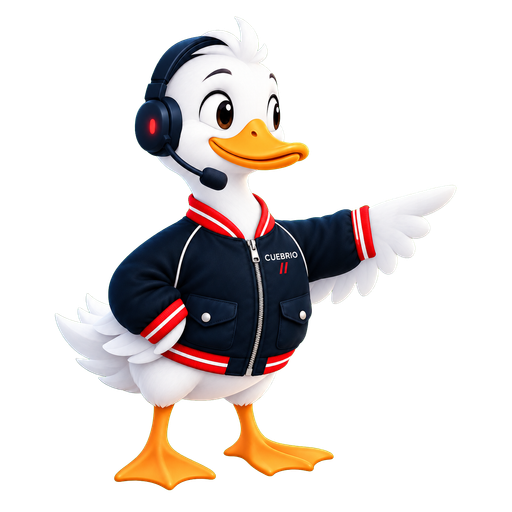
A LITTLE HELP BEFORE YOUR NEXT TAKE.
Tell us about your guests, cameras and the moments you want to put on air. Q, our support duck, can point you toward the right guide.